Author: Lynx Software

Version 7 Highlights #3

One of the most popular features in SharpLynx is the ability to have reports emailed or sent to a cloud drive. Version 7 includes a number of enhancements to these features making them easier to use and more flexible.

Email Address and Cloud Drive Maintenance

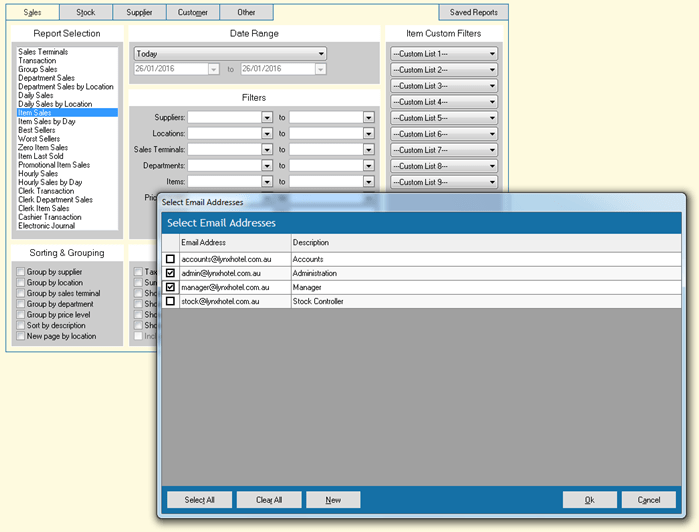
Now you can maintain your email addresses and multiple cloud drives. You can even add a meaningful description to each email address or cloud drive.


Email Address and Cloud Drive Selection Dialogs

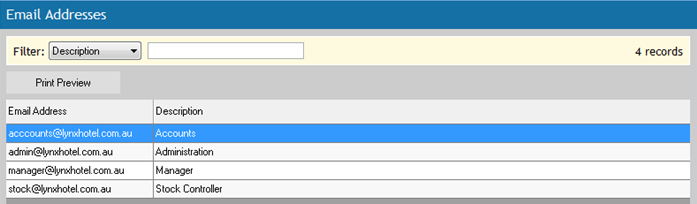
The new Email Address and Cloud Drive selection dialogs make sending reports a breeze! Simply make your selection and then click Ok to send your reports. You can even add new email addresses or cloud drives on-the-fly by clicking the New button. As an added bonus these new dialogs also provide a confirmation step before your reports are sent.

Email Log

Check to see what emails have been sent and whether or not any errors occurred.

Version 7 Highlights #2

In Version 7 Highlights #1 we focused on the improvements that have been made to various data grids. Now let’s have a look at some of the new reporting features that will be included in the initial release of SharpLynx v7.

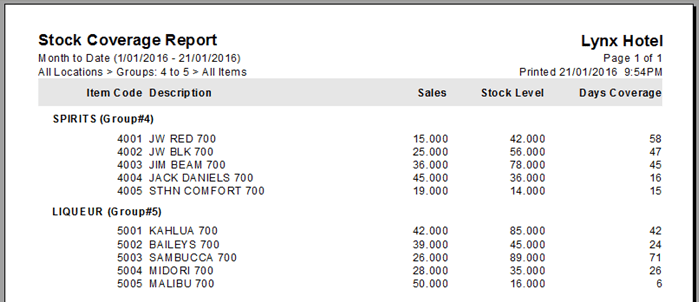
Stock Coverage Report

Do you know how many days your stock will last based on your average sales? The new Stock Coverage Report lets you do just that. Optimise your stock holdings by identifying fast moving items that are understocked and slow moving items that are overstocked.


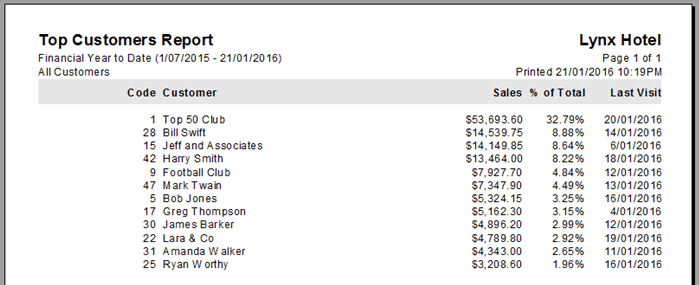
Top Customers Report
Get to know your best customers with the Top Customers Report.


Other New Reporting Options and Features

  • Price Level filter on Item Sales and Item Sales by Day reports
  • Group by category option on Stock Write-offs Report
  • Last Visit date shown on Customer Analysis Report

Version 7 Highlights #1

Welcome to the first of series posts highlighting some of the new features that will be included in SharpLynx v7 when it is released on January 29, 2016. In this post we will focus on improvements that have been made to various data grids.

New Grid Style Options

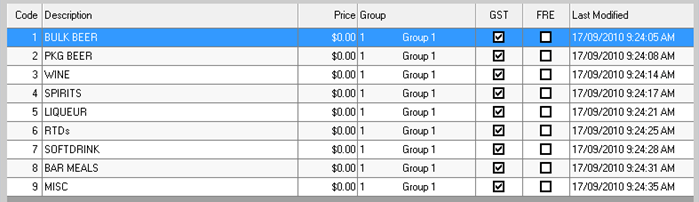
Alternating row style and increased row height options improve the readability of data grids. Both of these options are enabled by default in Version 7. These new settings are applied to all of the data grids in the software and each setting can be enabled or disabled in Setup > Preferences > Theme.


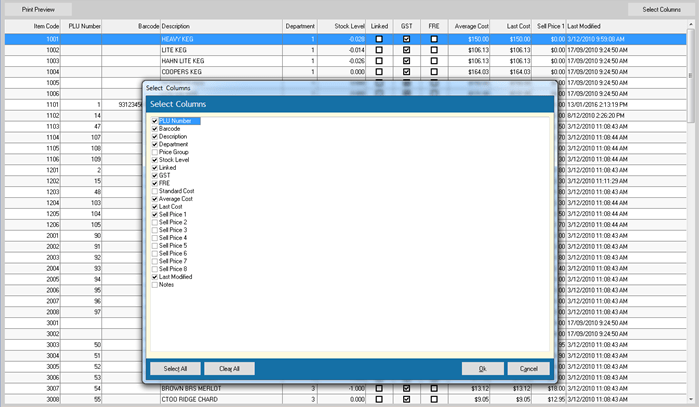
Select Columns

The new Select Columns option that has been added to a number of key data grids allows you to choose which columns you want displayed in the grid. You can edit your column selection at any time and your new selection then becomes the default setting for that data grid.


Print Preview

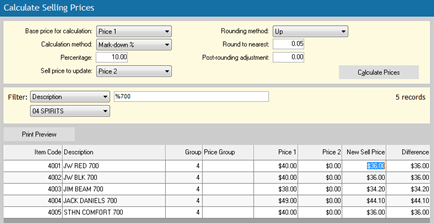
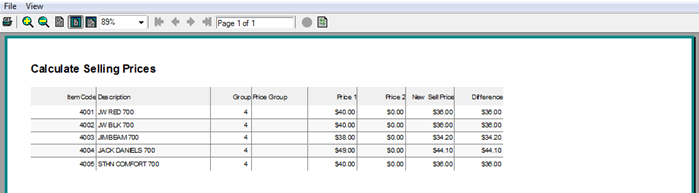
Want to print the contents of a data grid? Now you can! Filter and sort the grid to suit your needs and then click the Print Preview button to see what your print-out will look like.


Other Improvements

  • An option to edit Clerk Names directly in the Clerks data grid
  • The Sell Price Column selection in Item Selling Prices grid is now saved and used as the default
  • Sell Prices 1 to 8 have been added to the Items data grid
  • Last Visit date/time has been added to the Customers data grid

Software Update v6.09.0004

Released: 04/11/2015
New Features:
  • Scheduled Job description included in subject line of emailed Batch/Saved reports
  • Date range shown on Consolidated Batch Reports printed or emailed during Scheduled Jobs
  • Deactivate Licence icon changed to avoid Windows ‘Pin this program to taskbar’ issues

ELA Licences and PC Upgrades

Thinking of upgrading your PC hardware, upgrading to Windows 10 or getting a new PC?

All of these scenarios can have an affect on electronic software licences. If you are using SharpLynx with Electronic Licence Activation (ELA) then you need to follow the procedure below when upgrading your PC or transferring to a new PC so that you don’t lose your software licence.

  1. Deactivate your licence BEFORE upgrading your PC or transferring to a new PC
    (Windows Start Menu > All Programs > Lynx Software > SharpLynx vX Deactivate Licence)
  2. Upgrade your PC or install SharpLynx on your new PC
  3. Start SharpLynx and follow the prompts to Activate your licence
    (You will need the original Licence ID and Password that was supplied with your software)


Software Update v6.07.0006

Released: 29/09/2015
New Features:
  • Support files updated for Windows 10
  • Department Number included in Department Filter drop-down lists
  • Scheduled Email Batch/Saved Reports send status added to Communications Log
  • Database size warning disabled when running in Scheduled Communications Only mode